Claude Code: Features You're Probably Not Using (But Should)
Claude Code is the most talked-about developer tool right now. Almost everybody has it running in a terminal somewhere. But whether you get 10x leverage or spend your days re-pasting the same prompt twelve times depends almost entirely on how well you understand the tool.
I've been using CC (Claude Code) daily for a while and have built up a list of features I reach for constantly. Here they are.
CLAUDE.md
If there's one thing that makes the difference between CC feeling smart versus helplessly generic, it's CLAUDE.md. It's a markdown file CC automatically loads into every session. You set it up once, and CC always knows the rules.
Three scopes:
~/.claude/CLAUDE.md: global, loaded in every project./CLAUDE.md: project root, the main one- Subdirectory
CLAUDE.md: loaded only when CC is working in that subtree
What belongs in it:
- Project-specific commands ("use
pnpm test:unit, notpnpm test") - Code conventions that lint doesn't enforce
- Architecture notes ("auth lives in
internal/auth, talks to Keycloak") - "Don't touch" lists and known gotchas
What doesn't belong: anything CC can just read from your code. Save CLAUDE.md for context CC can't figure out on its own.
Setup: run /init in your project and CC scaffolds one for you. During a session, prefix a message with # to append a quick note to CLAUDE.md without leaving the chat.
# Project

E-commerce backend API built with Node.js and PostgreSQL.

## Commands

- `npm run dev` — start dev server
- `npm test` — run unit tests only (not `npm run test:all`, that hits the real DB)
- `npm run lint` — ESLint + Prettier

## Architecture

- `src/routes/` — Express route handlers
- `src/services/` — business logic, keep DB access out of routes
- `src/db/` — raw SQL queries, no ORM

## Conventions

- Prefer `async/await` over `.then()` chains
- All DB queries go through `src/db/`, never inline in routes
- Don't use `any` in TypeScript

## Do Not Touch

- `src/legacy/` — deprecated payment flow, being replaced in Q3
- `.env.production` — never commit, never read in code
Plan Mode
It's common for CC to misunderstand requirements and implement things in a slightly wrong direction. Then you're going back and forth correcting it, and after a few iterations both you and CC are confused about what the original goal even was.
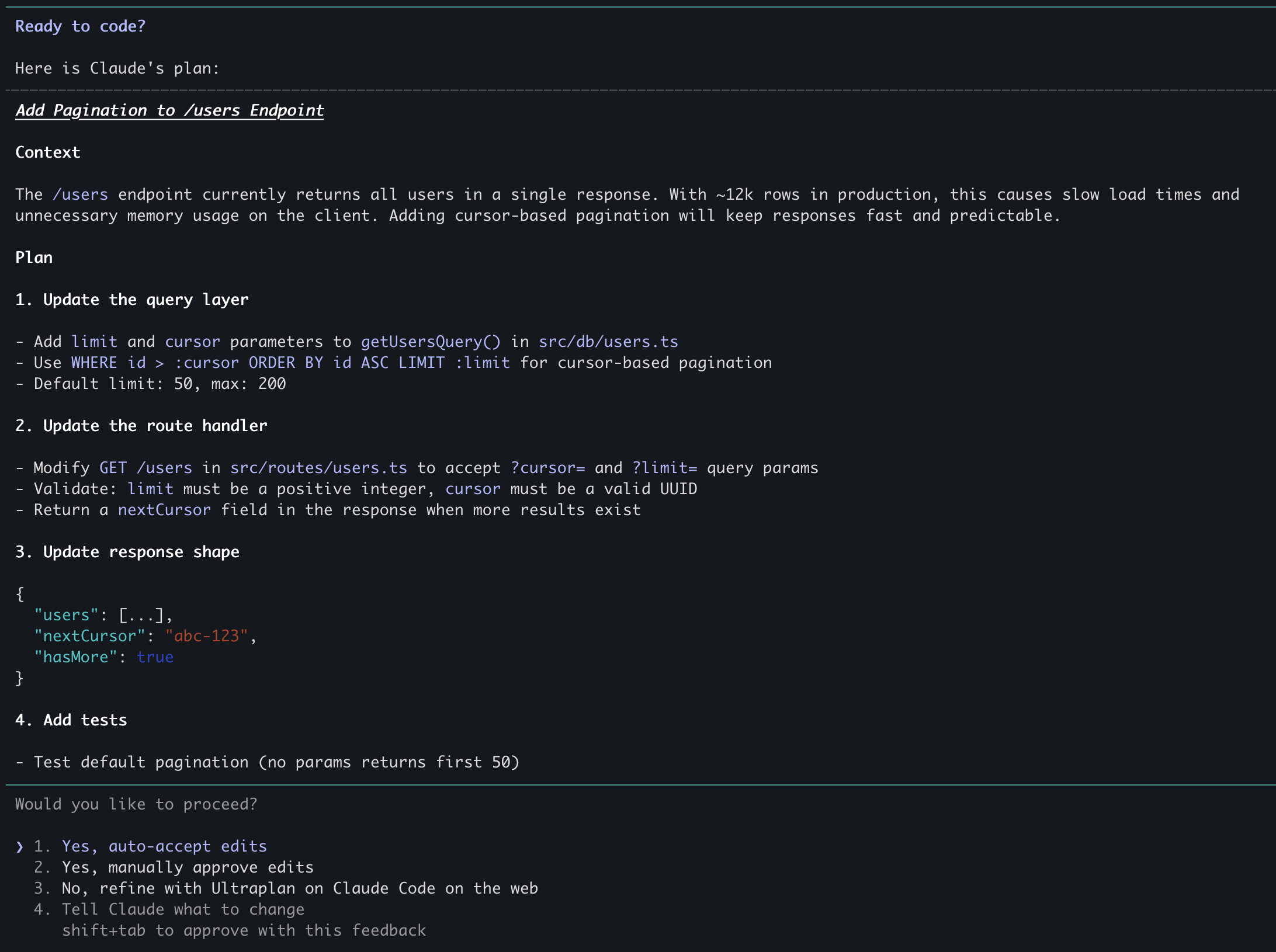
Whenever you're starting a complex task, or whenever you're not sure about the right approach, don't just send the task. Start with plan mode first. CC won't touch any files. It produces a detailed breakdown of what it's going to do. You review it, push back on anything that looks wrong, and only then give the green light.
Two ways to activate it:
- Cycle through
shift+tabuntil the status line says "plan mode on" - Use the words "plan", "think", or "think hard" in your prompt. CC reads these as signals to plan before writing code. Example:
"Before writing any code, think hard about how you'd add pagination to the
/usersendpoint. Give me the plan and wait for my approval."
When you see the plan, treat it like a PR: edit it, challenge it. That's the whole point, catching misalignment before the code exists.
/model opusplan
If you're a Pro subscriber ($20/month), you already know the rhythm of hitting rate limits and accepting that Sonnet is your reality. But you can use /model opusplan to route plan mode to Opus and everything else to Sonnet. The reasoning: planning is where the complex thinking happens, and following a solid plan is something Sonnet handles fine. I've found this almost eliminates the "CC went off in the wrong direction" problem while keeping Opus usage sustainable.
/clear and /compact
Context is everything CC has seen in a session: every file it read, every tool result, every message. It lives in a finite window (~200k tokens), and past about 50% full, CC gets noticeably slower, more expensive, and fuzzier about earlier details.
Two tools for managing it:
/clear nukes the context and starts fresh. Use this between unrelated tasks. My personal rule: when the context meter hits 50%, I've dragged the session too far. Clear it as soon as possible.
/compact is the gentler option. CC summarizes the conversation so far, keeping the gist but freeing up tokens. Use this mid-task when a big task has grown the context but you still need the continuity.
Rule of thumb: /clear between tasks, /compact within a task that's gotten large.
Custom Subagents
If you find yourself pasting the same five-paragraph instructions at the start of every session, that's a sign you should be writing a subagent instead.
Subagents are specialized CC instances with their own system prompt, their own tool allowlist, and a fresh context window. They're great for repetitive specialists or for fanning out parallel tasks without one task's noise polluting another's context.
Setup: the easiest way is to run /agents in CC, pick "Create new agent", choose project or personal scope, and select "Generate with Claude". CC will interview you about the agent's purpose and write the file itself. If you'd rather do it manually, drop a markdown file in .claude/agents/<name>.md (project-level) or ~/.claude/agents/<name>.md (global). The YAML block at the top (between the --- markers) sets the name, description, and tools; the body is the system prompt.
---
name: dependency-auditor
description: Checks for outdated or vulnerable packages and returns a prioritized list
tools: Bash, Read
---

Check the project's dependencies for outdated versions and known CVEs.
Return a prioritized list: critical security issues first, then major
version upgrades, then minor.
Once created, you can invoke an agent by mentioning it in your prompt ("use the dependency-auditor agent to check my packages"), or CC will pick it up automatically when it decides a task matches the agent's description. Having a precise description for your agent matters.
A few useful starting points:
dependency-auditor: checks for outdated or vulnerable packages, returns a prioritized listchangelog-generator: reads git log and produces a structured changelog entry
Hooks
Hooks are shell commands you configure CC to run automatically at specific points in its workflow. They're set in .claude/settings.json (project) or ~/.claude/settings.json (user-wide).
The four main trigger points:
PreToolUse: runs before CC uses a tool. Useful for blocking or logging. If the hook exits with a non-zero code, CC won't proceed with the tool call.PostToolUse: runs after a tool call completes. Good for auto-formatting files after an edit, or running a quick lint check.Stop: runs when CC finishes its response and is waiting for your input.Notification: runs when CC sends you a notification (e.g. when it needs your approval to proceed).
Most developers never touch hooks. That's a miss. They're what turns CC from an interactive assistant into something closer to a workflow engine.
My use case is a chime. When I'm orchestrating multiple CC sessions in parallel, CC often finishes its work and silently sits waiting for my approval. If I'm heads-down elsewhere, it can wait indefinitely. A Notification hook that plays a sound fixes this.
To set it up, just tell CC:
"Set up a chime using a Notification hook in my user settings."
Let CC write the JSON itself. The result looks something like:
"hooks": {
  "Notification": [
    {
      "hooks": [
        {
          "type": "command",
          "command": "afplay /System/Library/Sounds/Glass.aiff"
        }
      ]
    }
  ]
}
Git Worktrees
One of the biggest productivity gains from CC comes from freeing you up to do multiple tasks at once. But what if you want to run parallel tasks on the same repo?
The problem: one repo, one checked-out branch. If CC is mid-feature and a hotfix comes in, you either interrupt CC or switch branches and confuse it.
Git worktrees solve this. They let a single repo have multiple working directories simultaneously, each on its own branch, sharing the same .git. No separate clone, no stashing.
The 3 commands:
git worktree add ../myrepo-hotfix -b hotfix/thing
cd ../myrepo-hotfix
claude
Now you have two independent CC sessions, one on your feature branch and one on the hotfix, and they don't interfere. When you're done: git worktree remove ../myrepo-hotfix.
~/projects/
├── myrepo/                  ← working dir (feature/auth branch)
│   ├── .git/                ← shared git repo
│   ├── src/
│   └── ...
│
└── myrepo-hotfix/           ← working dir (hotfix/login-crash branch)
    ├── src/
    └── ...                  ← no .git/ here, linked to myrepo/.git

 Terminal 1                   Terminal 2
┌─────────────────────┐      ┌─────────────────────┐
│ cd ~/projects/myrepo│      │ cd ~/projects/      │
│ claude              │      │     myrepo-hotfix   │
│                     │      │ claude              │
│ ● feature/auth      │      │ ● hotfix/login-crash│
└─────────────────────┘      └─────────────────────┘
Remote Control
As of early 2026, CC can bridge your local terminal session to your phone. Your laptop still does all the computation; only the conversation is routed through.
Most long-running CC tasks don't need you hovering. You give CC a well-defined plan, let it run, and check back when it needs approval on a tool call or has a question. Remote Control lets you do that from the couch, a café, or wherever.
Setup:
- Start CC locally as normal
- Run
/remote-controlin the session - Open the Claude mobile app and interact with the session
caffeinate on macOS: pair Remote Control with caffeinate -i claude so your Mac doesn't sleep and drop the session mid-task.
caffeinate -i claudeGotcha: sleep and network drops reconnect automatically. If the laptop fully shuts down, the session is gone.
MCP Servers
By default, CC knows how to read files, edit code, and run Bash. MCP (Model Context Protocol) servers are how it picks up new tools: a Postgres client, a REST API, your internal tooling, whatever.
Setup:
claude mcp add postgres npx @modelcontextprotocol/server-postgres
claude mcp list
A concrete example: a Postgres MCP server lets CC query your dev database directly. Instead of you pasting query results into the chat, CC runs the queries itself as part of its reasoning.
A full MCP deep-dive is its own blog post. The short version: whenever CC lacks a tool it needs, check if there's an MCP server for it before building a workaround.
--dangerously-skip-permissions
Every time CC wants to use a tool, it asks permission. Allow once, Allow always, Deny. Once you've approved 40 of these in a row, you start wondering why you have hands.
Start CC with:
claude --dangerously-skip-permissionsEvery tool call runs unattended. CC does its thing without asking.
When this is fine: greenfield projects, throwaway sandboxes, Docker containers, or git worktrees you're willing to burn. The "dangerously" is real. If CC reads something wrong, it will charge ahead and change things.
The safer middle ground: instead of the nuclear option, use the permissions.allow list in your settings to pre-approve specific tool patterns. You get unattended execution for the safe tools while still getting prompted for destructive ones.
Status Line
The status line at the bottom of the CC interface is configurable. By default it's minimal; with one command you can turn it into a useful dashboard: model, git branch, context usage percentage, and rate limit status.
It prevents the surprise of hitting the daily rate-limit mid-task, or realizing you've burned 90% of your context window on a detour. You see the numbers before they become a problem.
Use /statusline with this prompt:
Configure my status line to show: model name, current directory with git branch, context window usage percentage, 5-hour rate limit usage with time until reset, and 7-day rate limit usage.

Other Useful Slash Commands
/chrome
When building UI, CC is normally flying blind. It writes code but can't see what it actually renders. /chrome fixes that. Install the Claude in Chrome extension, then start CC with claude --chrome (or run /chrome mid-session) and CC can navigate to your app, see what it looks like, click around, read console errors, and iterate based on what it actually observes rather than what it assumes. It inherits your browser login state, so it can interact with authenticated apps too.
Caveat: browser tools are always loaded when Chrome is enabled, which eats into your context budget. Enable per-session unless you use it daily. To toggle the default: run /chrome and choose "Enabled by default."
/btw
Type /btw <question> and CC answers in a dismissible overlay without adding anything to the conversation history. The side question has full visibility into the current session (so you can ask "what was that file you opened earlier?"), but the answer never lands in the context window.
Use it when you're mid-task and need to ask something without cancelling the whole flow.
/resume
Closed your terminal by accident? Need to continue yesterday's investigation? /resume shows a list of prior sessions you can reattach to.
/rewind
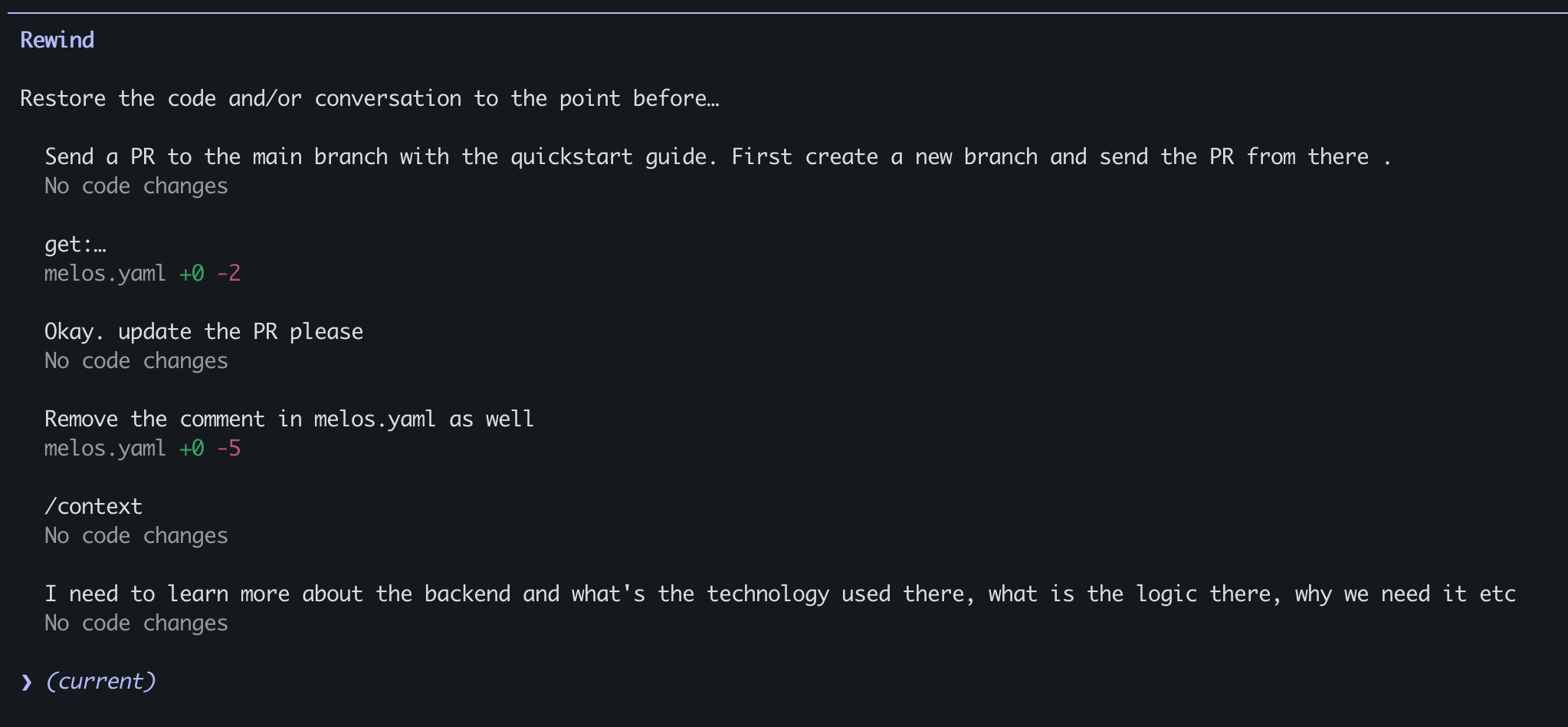
Esc Esc (or /rewind) opens a scrollable list of every prompt in the current session. You can pick a point and restore both code and conversation, restore just the code, restore just the conversation, or compress everything from that point into a summary to free up context.
This changes how you approach experimentation. Knowing you can roll back makes it much cheaper to try things and see.
Gotcha: files touched by Bash (rm, mv, cp) aren't tracked. Only direct file edits through CC's Edit/Write tools are reversible.
CLAUDE_CODE_NO_FLICKER=1
On some terminals (iTerm2, Ghostty, and others), you end up mashing ctrl+A and ctrl+E to navigate, which can be frustrating.
Fix:
export CLAUDE_CODE_NO_FLICKER=1It enables an experimental new renderer from the claude team. The biggest positive is it allows moving the cursor by mouse clicks.
Add it to ~/.zshrc or ~/.bashrc to make it permanent.
Shoutouts
A few people and places worth following if you want to stay current on CC:
- @claudeai on X: official account for announcements
- Boris Cherny on X: creator of Claude Code, shares tips as they ship
- Thariq on X: working on claude code at Anthropic, consistently good CC content
- Claude Blog: where newly introduced claude features are explained
- Anthropic Engineering blog: where the deeper technical posts land